
Description
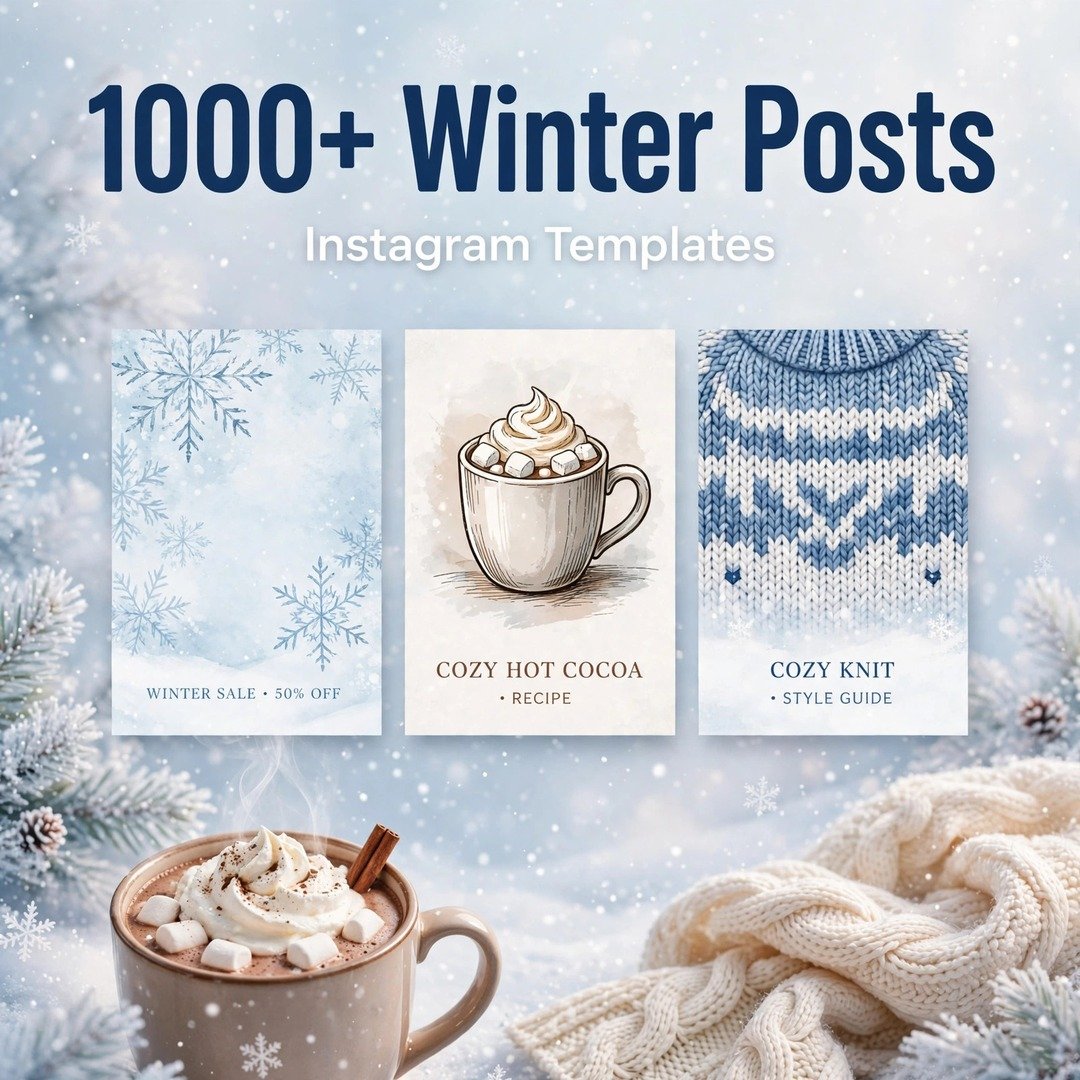
Winter Instagram post templates help you create cosy, seasonal posts for your feed. This bundle includes 1000+ winter Instagram post templates with cosy quotes, snow days, hot cocoa and winter sale designs in many styles. You can edit each design in Canva and post it in minutes.
What Is Included in the Winter Instagram Post Templates Bundle
The bundle contains 1000+ winter Instagram post templates. The product page lists cosy quotes, snow days, hot cocoa and winter sale designs in many styles. Each template is edited in Canva, so you can adjust the wording, images and colours to suit your brand.
How to Use Winter Instagram Post Templates
Creating a winter post from a template follows a simple order:
- Choose a winter design that suits your message, such as a sale or a cosy quote.
- Replace the sample text with your message or offer.
- Add a product photo or a seasonal image, and keep the layout balanced.
- Check the post on a phone and on a computer.
- Schedule the post for a time when your followers are active.
Who Should Buy This Bundle
These winter post templates suit shops, creators and businesses that want their feed to feel seasonal. They also suit anyone who likes to share cosy moments, because the bundle includes quotes and everyday winter scenes as well as sale designs.
Planning a Winter Feed
A seasonal feed works best with a plan. Mix sale posts with quotes and everyday moments, so the feed does not feel like advertising alone. Prepare the designs at the start of the season, then schedule them across the weeks. Review the feed each month and keep the posts that get the best response.
Keeping the Look Consistent
Winter designs often use cool colours and soft textures. Choose one palette for the season, and use it across the feed. Keep the fonts the same as your everyday posts, so the seasonal designs still feel like part of your brand.
Tips for Cosy Posts
Keep one main message per post, and use large text for the key words. Use one or two images per post, so the design stays clear. Save your brand colours in Canva, so seasonal posts match your usual style. Check the post on a phone before sharing.
Common Mistakes to Avoid
A common mistake is leaving sample text or old dates on the design. Another is overusing winter sale posts, which can make the feed feel pushy. Avoid crowded layouts, because small text is hard to read. Finally, remove winter posts once the season has ended, so the feed stays current.
Quick Checklist Before You Post
- Replace all sample text and dates.
- Check the post on a phone.
- Confirm that the offer is still running.
- Schedule the post for a time when followers are active.
Frequently Asked Questions
Can I edit these winter templates in Canva?
Yes. The product page says you can edit each template in Canva and post it in minutes.
Do I need design skills to use them?
No. The templates are ready to customise, so you change the text and images rather than building a layout from scratch.
Can I use the templates for client work?
Check the licence terms that come with your download before you use the templates for client work or resale.
Choosing Winter Colours and Moods
Winter posts can reflect different moods, from calm and cosy to bright and festive. Pick the mood that suits your brand, then use the matching templates across your feed. Mixing too many moods can make the feed feel uneven, so keep the palette consistent over several weeks. Use one photo style, such as soft natural light, to tie the posts together.
Explore More Digital Products
Browse more social media bundles in the MN5 DIGITAL shop, or see all products from this seller on the RizStore page. For design basics and Canva tips, visit Canva’s website.










Reviews
There are no reviews yet.